Users
This view allows the administrator to manage user accounts and groups in order to create a hierarchical administration structure.
Users can only manage DEVICE SECURITY instances based on their group membership.
Hierarchy Example

This image shows a hierarchical sample structure. This example contains:
- Two users (User X , User Y)
- Three Customer Groups (Customer A, Customer B and Customer C)
- Three Licenses of Customer A, two licenses of Customer B and C
In order to achieve this structure, the licenses of Customer A are allocated to the Customer A group, the licenses of Customer B to the Customer B group ...
User X is a member of the groups Customer A and Customer B. User Y is just a member of Customer C. As a result of these group memberships, User X is able to manage all DEVICE SECURITY instances which are using the licenses of Customer A and Customer B. User Y can manage all instances of Customer C.
Users
Comparison of user and admin
| Feature | Admin | User |
|---|---|---|
| Dashboard | can see all stats | can see only stats of allocated EPs |
| Licenses | can manage all licenses | can manage only allocated licenses |
| Users | can manage users and groups | cannot manage this view |
| Profiles | can manage all profiles | can manage only own profiles |
| Quarantine | can manage all quarantined files | can manage only quarantined files of allocated EPs |
| Report | can access reporting view | cannot access the reporting view |
| System settings | can manage system settings | cannot manage system settings |
Groups
The group features allows the creation of groups containing users and licenses (many-to-many relationship). A user can only manage TUXGUARD PRO ENDPOINT instances of the corresponding group.
In order to create a license group, please execute the following steps:
- Navigate to Administration / users
- Click the Add Group Button
- Set name and group description
- Add user to the license group
- Add licenses to the group
- Click the Add Group Button
Example: Create a user for managing Customer X's PRIO ENDPOINT instances
In order to create a user for specific customer please follow the steps.
- Create a User e.g. named admin_customer_x
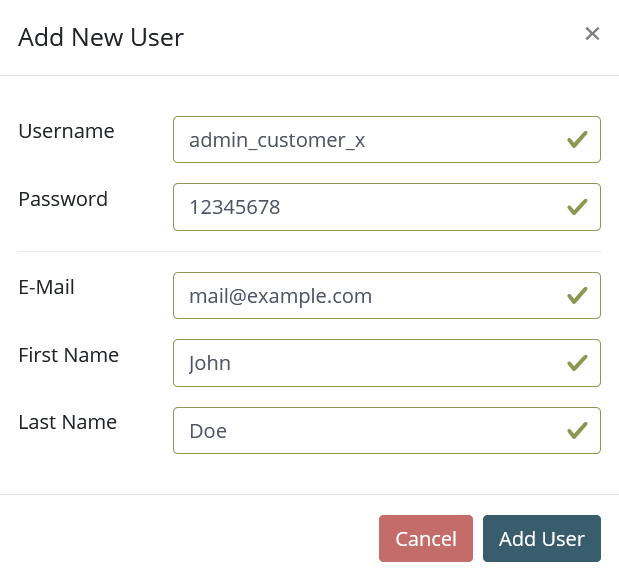
-
Create a Group e.g. named customer_x
-
Add a licenses of customer x to the group
-
Add user customer_x to the group

- Save the settings